
How to Change Home Address on Google Maps in Under a Minute
Ask Google Maps for directions home after a move, and it still points to your old front door. That mistake also skews commute times and traffic alerts. The fix takes about a minute. Here is how to change home address on google maps from a phone or a computer. You will also learn what to do when the old address refuses to leave.
Why a wrong Home label causes real problems
Maps uses your Home label for more than quick navigation. Commute estimates, leave-now reminders, and voice commands all read from that one saved spot. When the label is stale, each of them quietly gets things wrong.
Imagine a new apartment across town. You say “navigate home” at 11 p.m., and the app plots a route to last month’s address. Nobody wants that surprise after a long shift.
Old addresses also linger on your profile until you replace them. Learning how to change home address in google maps takes a couple of minutes, and it keeps every prediction honest. Once you change home address, Google Maps recalculates every commute estimate with the new spot. Even a beginner can learn how to change home in google maps in a single sitting.
How to change home on Google Maps with your phone
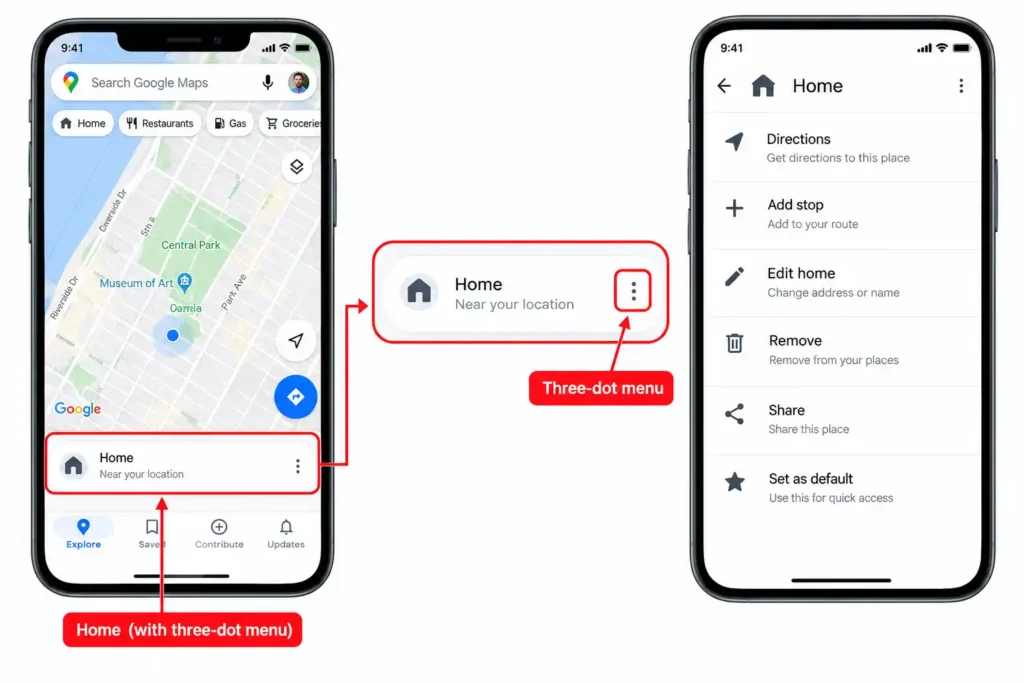
The steps are nearly identical on Android and iPhone. Menu names shift between app versions, so some screens label the bottom tab Saved while others call it You.
- Open Google Maps and check that you’re signed in to the right account.
- Tap the Saved tab at the bottom, or the You tab in newer versions.
- Scroll to Your lists and open the Labeled entry.
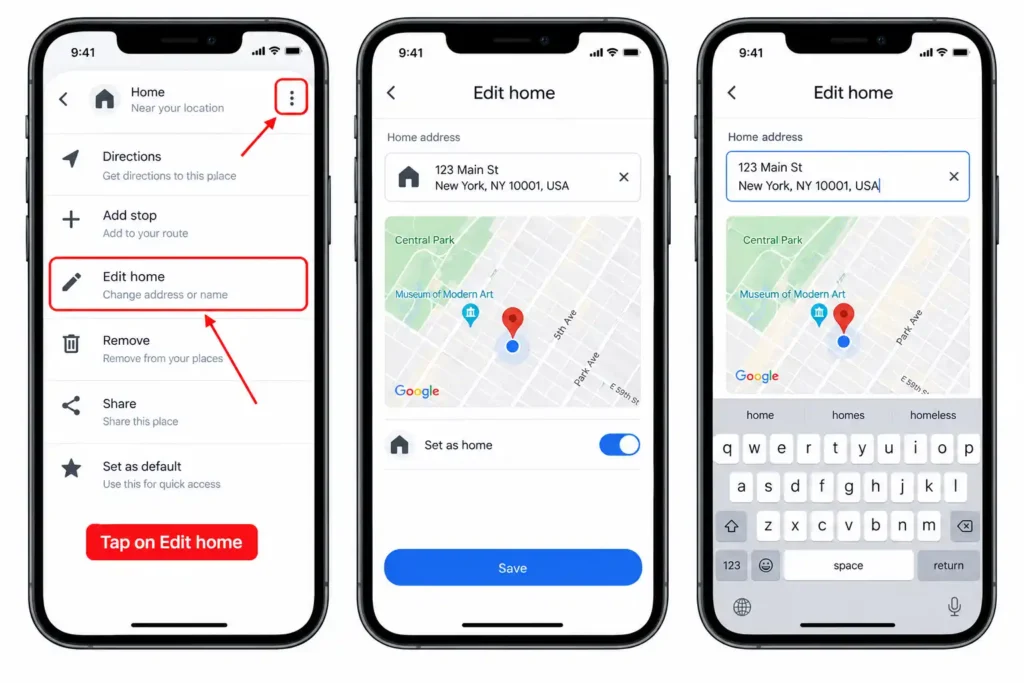
- Tap the three dots beside Home, then choose Edit home.
- Clear the old address with the X next to it.
- Type the new address and pick the matching suggestion from the list.
- Tap Save, or Done on some versions, to lock it in.
Picking a suggestion beats typing the whole address, because Maps then ties the label to a real place. If the pin lands a little off, drag it to the right doorstep before saving. iPhone users can also pull an address straight from a contact card.
If you never set a Home, the Labeled screen still shows an empty Home row. Tap it and enter the address. Some people prefer a clean slate. They choose Remove home from the same three dots and add the address fresh. Both routes show how to change home on google maps without digging through settings.
How to change home address on Google Maps from a computer
The desktop path uses a different menu, but the result matches the phone version.
- Open google.com/maps in a browser and sign in.
- Click the three-line menu beside the search box.
- Choose Saved, or Your places on older layouts.
- Open the Labeled tab to see your Home and Work entries.
- Click the three dots beside Home and select Edit or Remove.
- Enter the new address and confirm it with Save.
The computer method takes a little longer than the phone one. In return, you get a bigger screen for checking the pin. Once you change home address, Google Maps syncs it to every device signed in to that account, usually within minutes.
The quickest way to edit home in Google Maps
You can skip the menus entirely. Search for the new address and open its result card. Look for the Label option and choose Home from the list.
Maps usually asks whether you want to replace the current Home. Say yes, and the change is done.
This shortcut suits the moment you collect your keys. It is the easiest way to edit home in google maps while the new place is already on screen. Anyone who needs to edit home in google maps for a rental can use it too.
How to change work location on Google Maps
Job changes and hybrid schedules make this update just as common. The steps mirror the Home version, so nothing new needs learning here.
On a phone, open Labeled, tap the dots beside Work, and pick Edit work. On a computer, open Saved, choose Labeled, and edit the Work entry instead. That covers how to change work location on google maps on every device.
Anyone who needs to change work on google maps should test one commute afterward. Travel alerts follow the Work label, so a wrong one sends warnings about a road you no longer drive. You can also edit home in google maps during the same visit, since both labels sit side by side.
How to change home and work in Google Maps through your Google Account
Google keeps a second copy of these addresses inside your account settings. That copy can differ from your Maps labels, which explains odd suggestions in Search and other Google apps.
- Go to myaccount.google.com and sign in.
- Open Personal info from the left-hand menu.
- Scroll to Addresses and select Home.
- Enter the new address and save it.
- Repeat the same steps for Work.
Updating both places means every Google service agrees. Home and Work shortcuts also depend on Web & App Activity being turned on. Check that setting if suggestions still look wrong. If you change home address, Google Maps updates quickly, but the account copy needs its own edit. Anyone who only updates the in-app label may still see the old address elsewhere.
What to do when the new address does not show up
Sometimes you follow every step and the old address hangs on. These fixes solve most cases people run into.
- You may be signed in to a second Google account, so check your profile picture.
- Force close the app and reopen it to push the sync through.
- Update Google Maps from your app store, since older versions can hold stale labels.
- If you typed without choosing a suggestion, search again and pick a real match.
- Past searches can keep suggesting the former address, so clear that history too.
Give it a few minutes before repeating anything. Changes made in one place sometimes take a moment to reach every device.
If nothing works, sign out and back in, then remove the label and add it again. That reset clears most stubborn cases. Anyone still unsure how to change home in google maps after that can check Google’s help center for account-specific fixes.
Questions people ask about saved addresses
Your labeled places are private, and only you can see them unless you choose to share. Changing Home also does not delete your search history or past trips. It only shifts the point Maps uses for home-based predictions.
Many people ask whether Work and Home can share one address. They can, which suits anyone who works from a spare room. Just label the same place twice and Maps treats both as valid.
Another common question is whether a new label breaks saved directions. After you change home address, Google Maps keeps old saved trips unchanged. Rebuild them from the new Home so your shortcuts stay useful. Rest easy, because how to change home address in google maps stays the same after every move.
Google changes its menus often, which is why the steps here carry a check date. Curious how the company grew into a product with this many settings? Here is how old Google is and how it started.
Habits that keep your saved places accurate
Update your labels the week you move, not the month after. Predictions improve as soon as the data is right. Set a reminder to repeat how to change home and work in google maps whenever an address changes.
People who change work on google maps often, such as contractors, should check labels monthly. Everyone else can check the Labeled list every few months, because old work addresses pile up fast. Whenever a job changes, remember how to change work location on google maps right away. A quick refresher on how to change home address in google maps costs two minutes and saves plenty of confusion.
Anyone who remembers how to change home on google maps can fix a bad label in seconds. Shared phones call for extra care. If a partner or family member uses yours, confirm the active account before you edit anything.
Fix it once and move on
Changing a saved address ranks among the quickest wins in the app. On a phone, open Saved, then Labeled, and edit Home. On a computer, use the menu and follow the same path. Use those steps to change work on google maps whenever an office moves.
Now you know how to change home address on google maps and how to update Work. Repairing a stubborn sync is no longer a mystery either. Take one minute today, and let the app work from correct data.